Personal settings
This page will explain to you how to manage your personal settings in the application. To access your settings, click on your name on the top right of the screen.

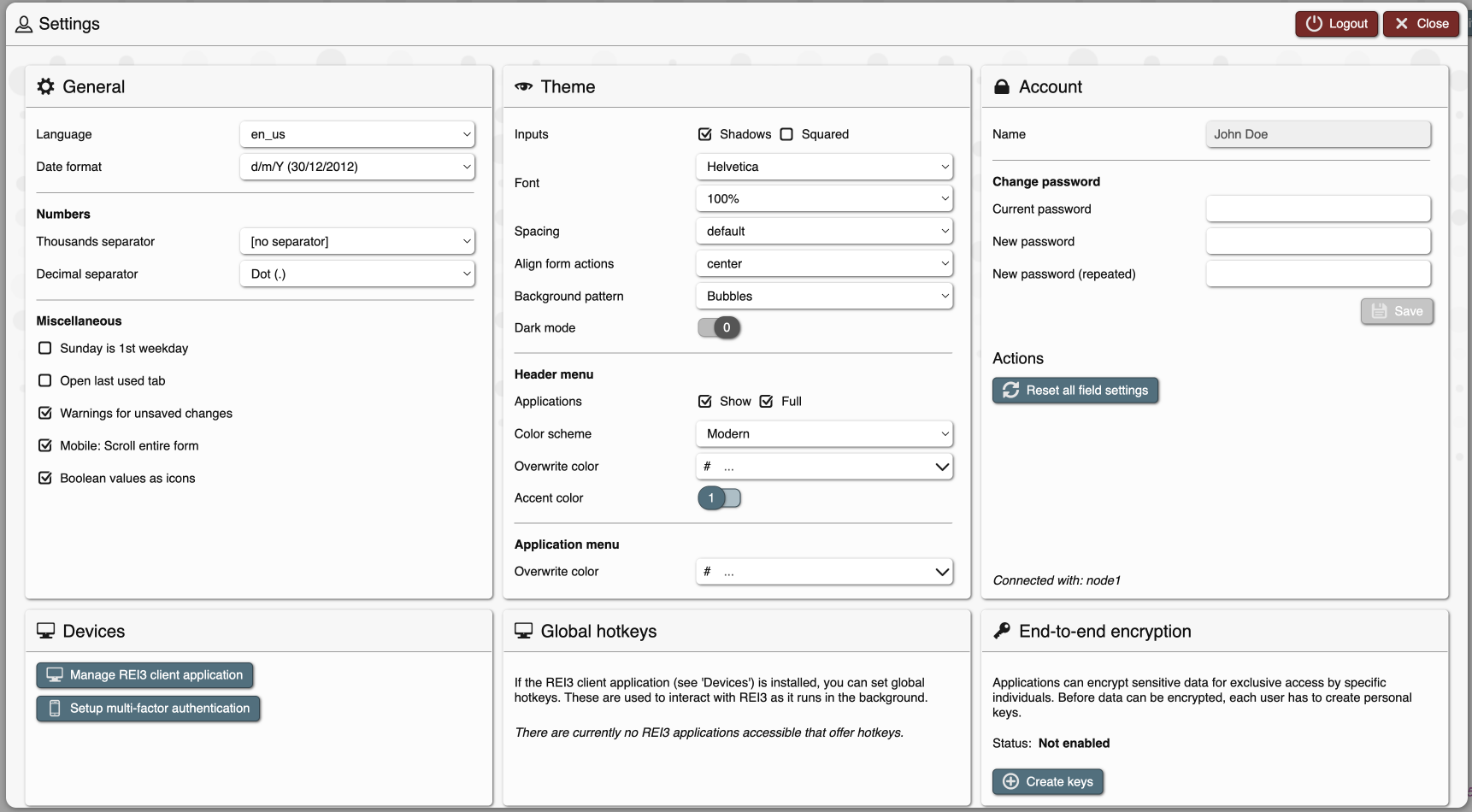
Once you've clicked on your name, your settings will appear. Your settings are very complete, but globally, you just need the "Account" section for your password and the "Devices" section for your multi-factor authentication.
How to change my password
When your account was created, you received a generated password that can be a little bit difficult to memorize. If you like, you can change your password to another one.
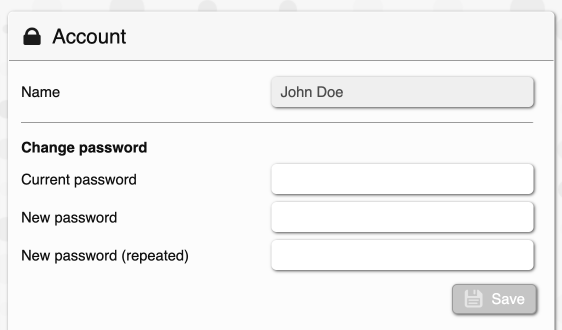
In the account section, enter your old password in the first field. Then, set a new password in the second and confirm it in the third. When done, click on the "Save" button just below.
Pay attention that your password needs to contain at least a number, a specific character, and a minimum length of 12 characters.
How to configure the multi-factor authentication
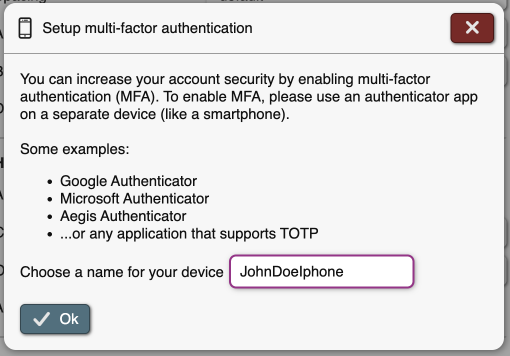
In this age of modern computing, security is important. We strongly recommend that you enable two-factor authentication. To accomplish that, simply follow these few lines. In the "Device" section of your settings, click on the setup multi-factor authentication.

It will open a little window; enter the name of your authentification method, for exemple "MyIphone" or "IphoneOfJohnDoe" and then click on the OK button.
It will display a QR code that you need to scan with an "Authenticator application".
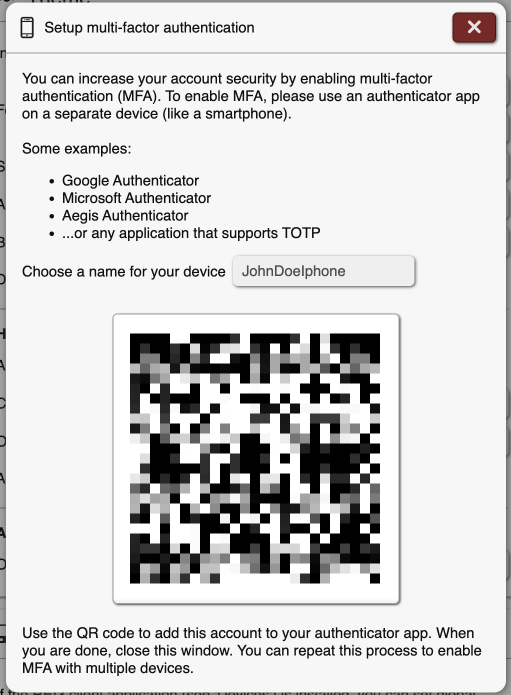
Once you've scanned the QR code and you have your 6-digit code, you can close this window.
If the configuration failed, close the windows and click on the trash on the line of your authenticator on the bottom line of the screen

If you don't do that, the next time you try to connect, you will be locked out.
Lost password or multi-factor
If you forgot your password or lost your multi-factor authentication, please email us at app@racbtm.be. We will reset your account or your MFA.
Please contact us with - as sender - the mail linked to your account. We will not allow the password recovery for your friend or family.